Employers are the foundation of many facets of Career Connect. This section will address how to create a new employer.
Creating an Employer
|
Screenshots
|
Notes
|
|
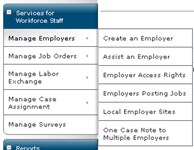
From the left panel select Manage Employers → Create an Employer
|
|
|
|
Select <<Recruiting Registration>>
|
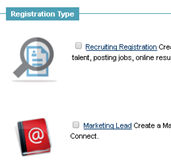 |
Marketing lead is not available for use in Phase 1
|
|
Enter FEIN or SSN of business
Click <<Continue>>
|
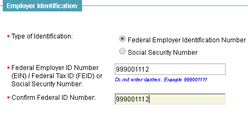 |
You must have a valid FEIN number for each location. Do NOT use a fake FEIN.
FEIN’s help to ensure that there are not duplicates in Career Connect.
|
|
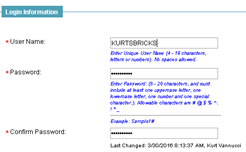
Create a User Name
|
|
Any User Name can be chosen, but it’s advisable to use something related to the company name.
You should not change the passwords. This is an aspect that may be used if employers are given access to Career Connect down the road.
|
|
Enter Company Name and address information
|
|
This will automatically become the primary location. If this employer has only one location, you will not need to add additional locations.
|
|
Enter contact information
|
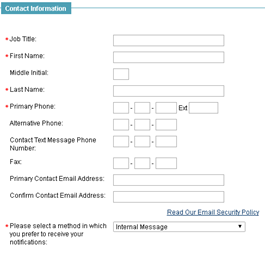 |
Every location must have a contact and should include an email address.
Select the contact method to “Internal Message”
|
|
Enter company information
|
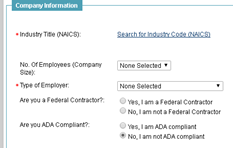 |
This includes information such as NAICS code, size, etc.
|
|
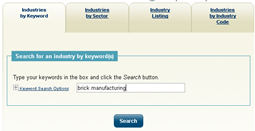
Finding Correct NAICS Code
NAICS = North American Industry Classification System
|
|
After clicking <<Search for Industry Code>> a new window will open. Search for codes by any option.
|
|
Selecting NAICS Code
|
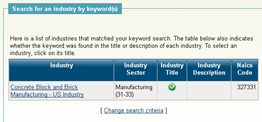 |
Click on the link to select the desired code.
This code will be entered into the employer profile.
|
|
Enter Description and Special Characteristics
|
|
|
|
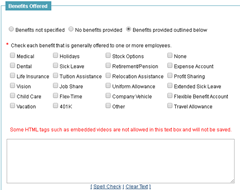
Enter Benefits Offered
|
|
Good idea to select benefits offered by the Employer as the benefits offered will be copied to each job posted for that employer.
Customizing benefits for a particular job is an option available in the job order process.
|
|
Review the employer
|
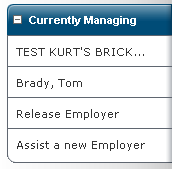 |
Notice that the “Currently Managing” has changed to the name of the company just created.
To review/edit the company, simply click on the Employers name.
|

Comments
0 comments
Please sign in to leave a comment.